Zoom Photo Sharing on a Desktop or Laptop
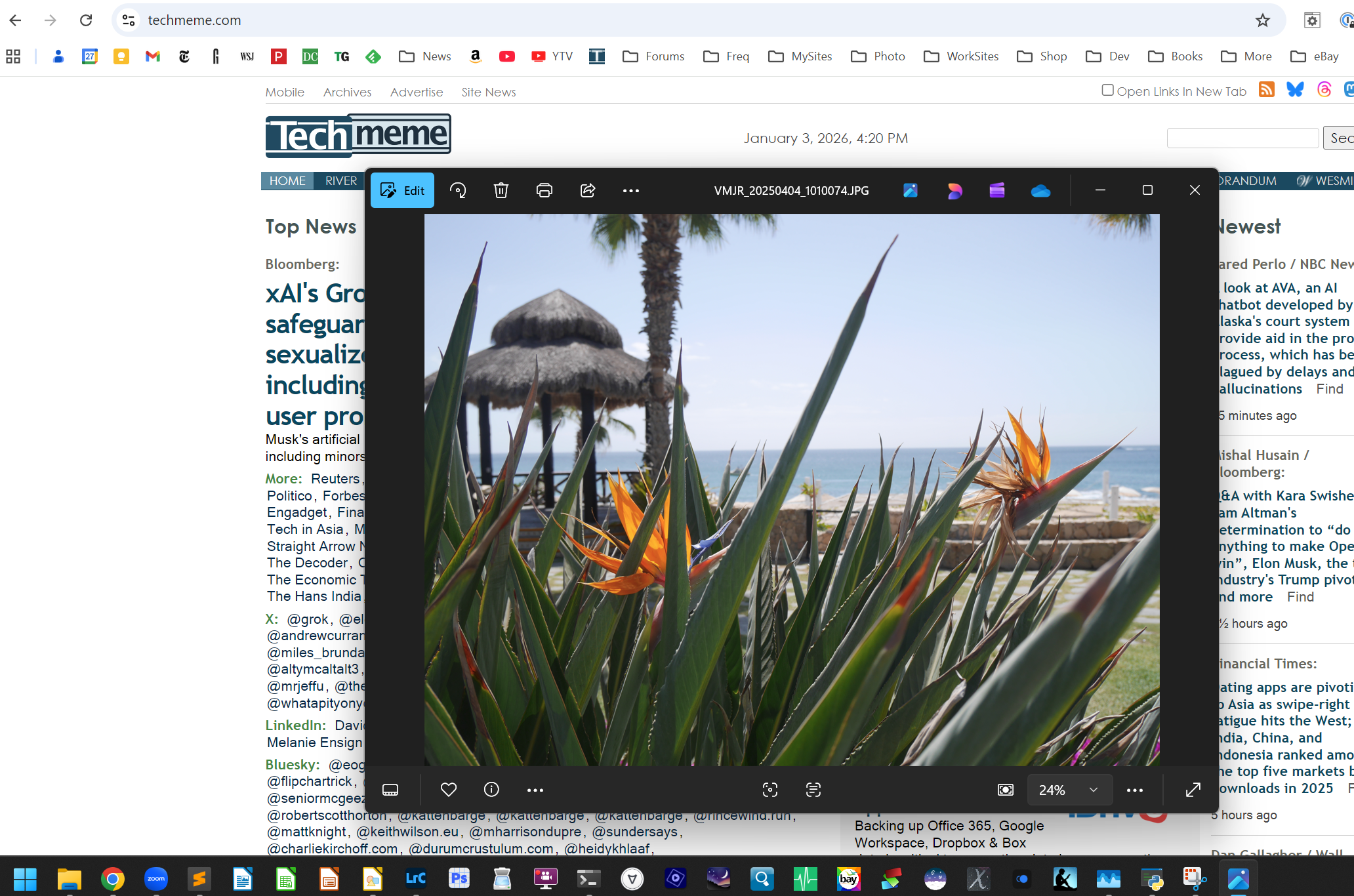
First, show the photo on your computer screen using whatever application you want (e.g., Photos, Lightroom, etc.). Do this before you click the Share control (next step).
It's convenient if the application can cycle through all the photos you want to share; that way you don't have to restart sharing anew for each image.
Second, hover the mouse at the bottom of the Zoom window so the controls appear. Then click Share:

In the dialog, choose the application window where your photo appears and click on it to select it. Then click the Share button at the bottom:
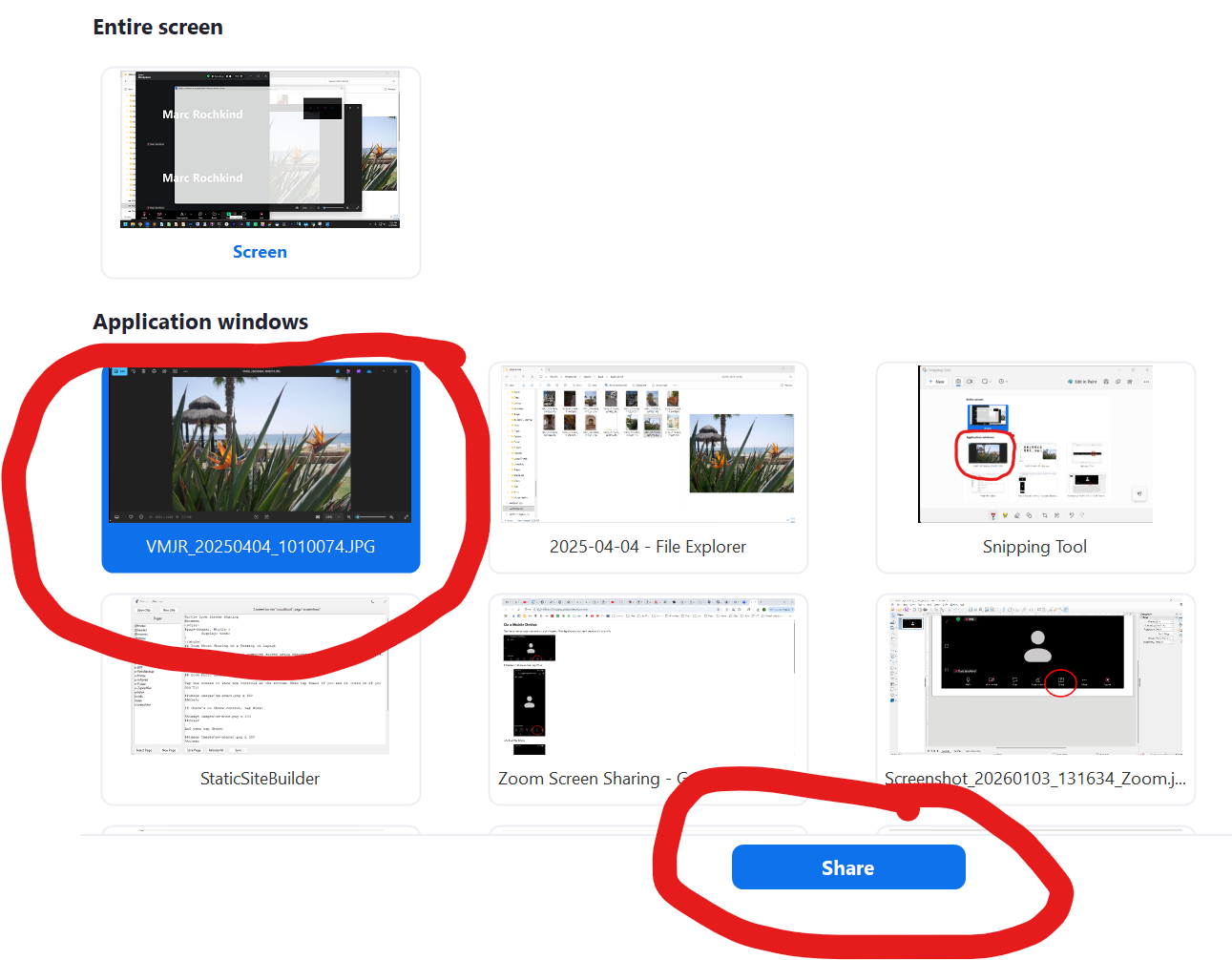
Note: You must show the photo on your screen BEFORE you click Share at the bottom of the Zoom window. You won't be able to select the photo if you click Share first.
Zoom Photo Sharing on a Mobile Device
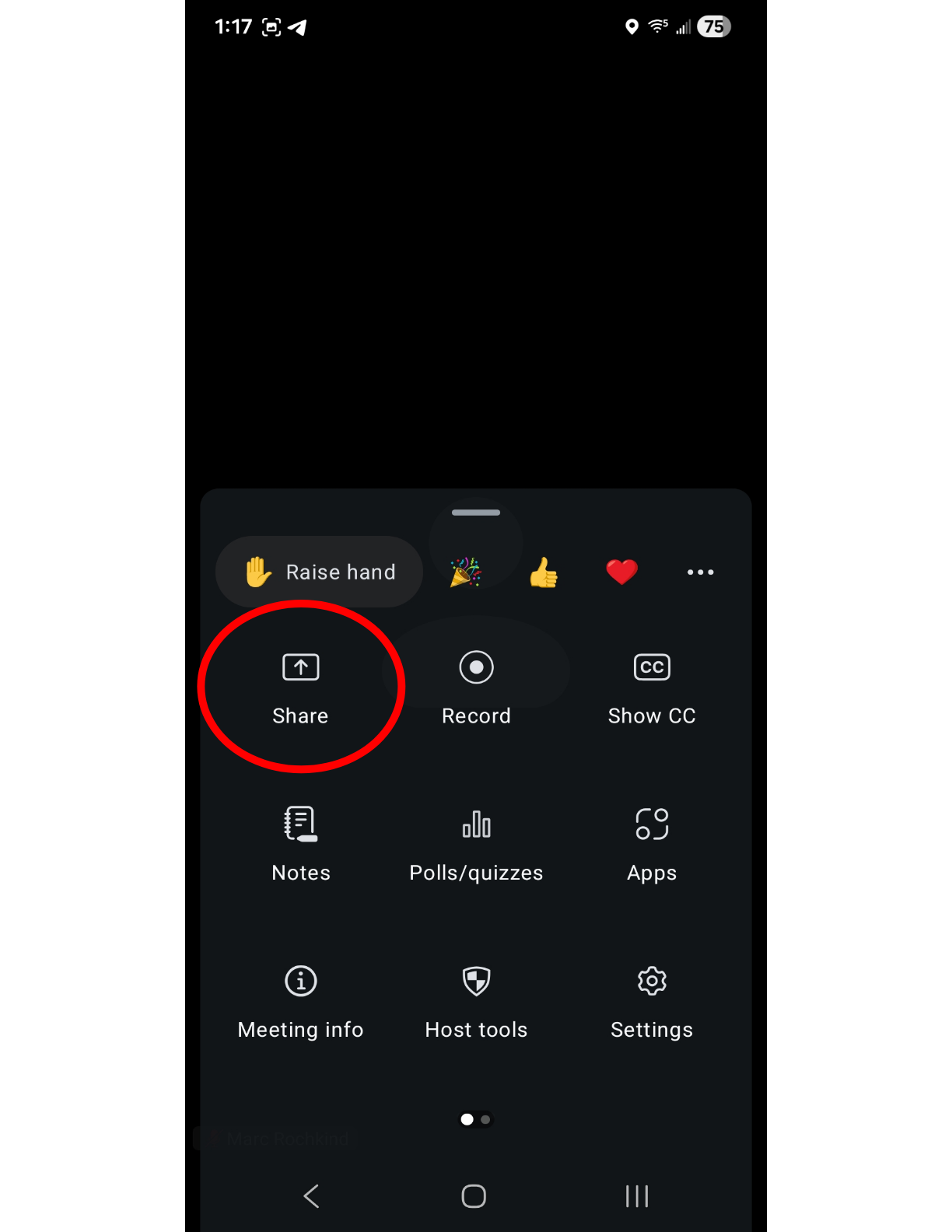
Tap the screen to show the controls at the bottom. Then tap Share if you see it (read on if you don't):

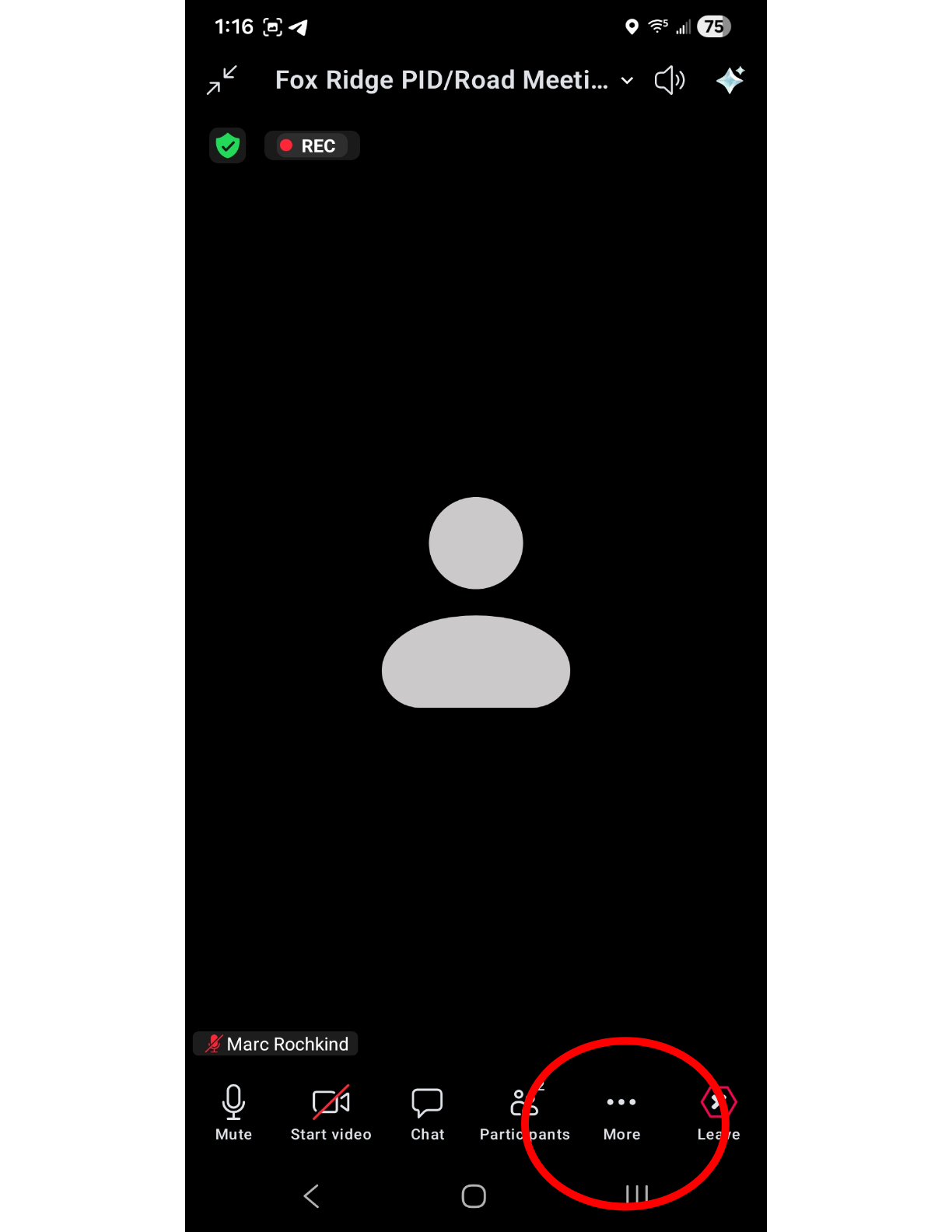
If there's no Share control, tap More:
And then tap Share:
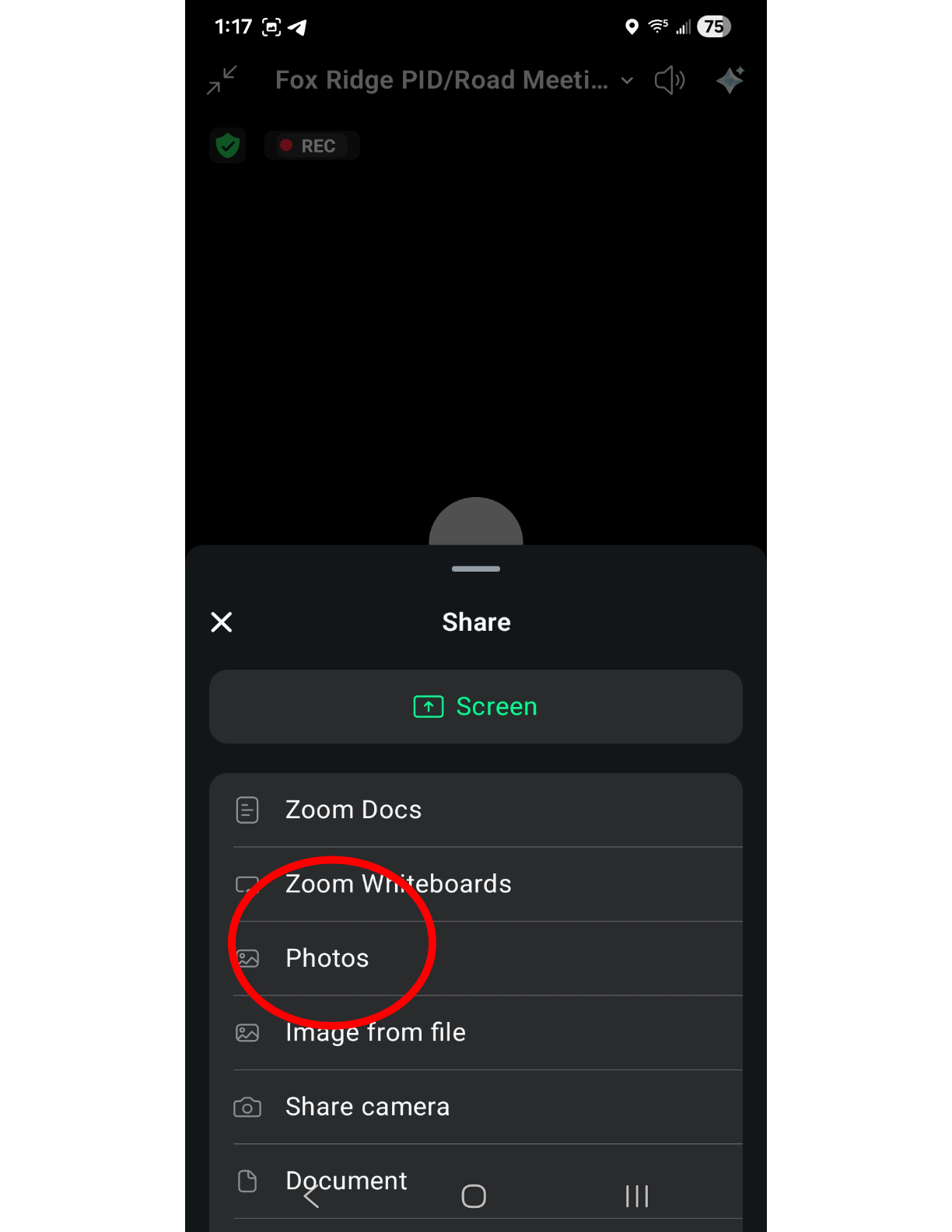
After you tap Share, choose Photos from the menu:
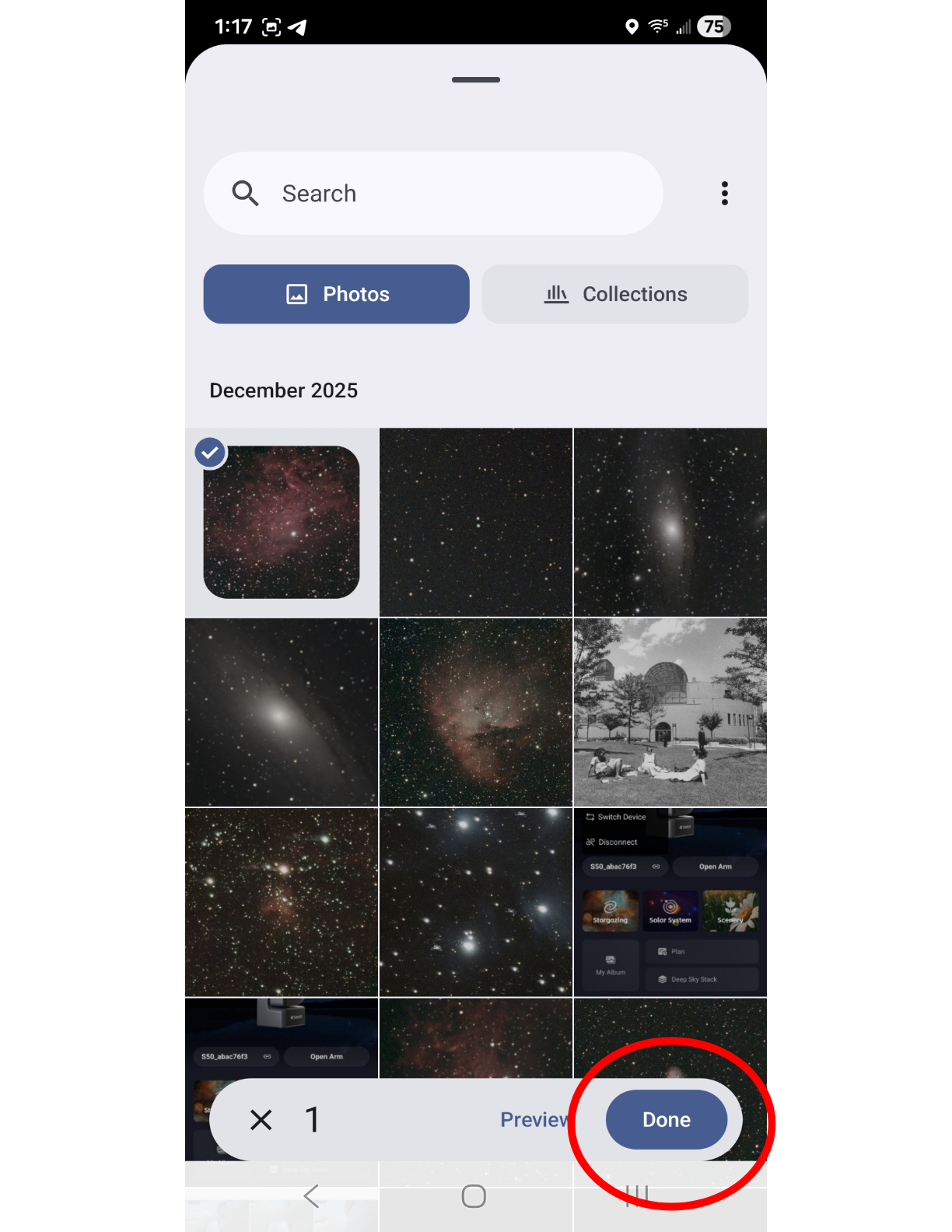
Select the photo you want to share and then tap Done: